
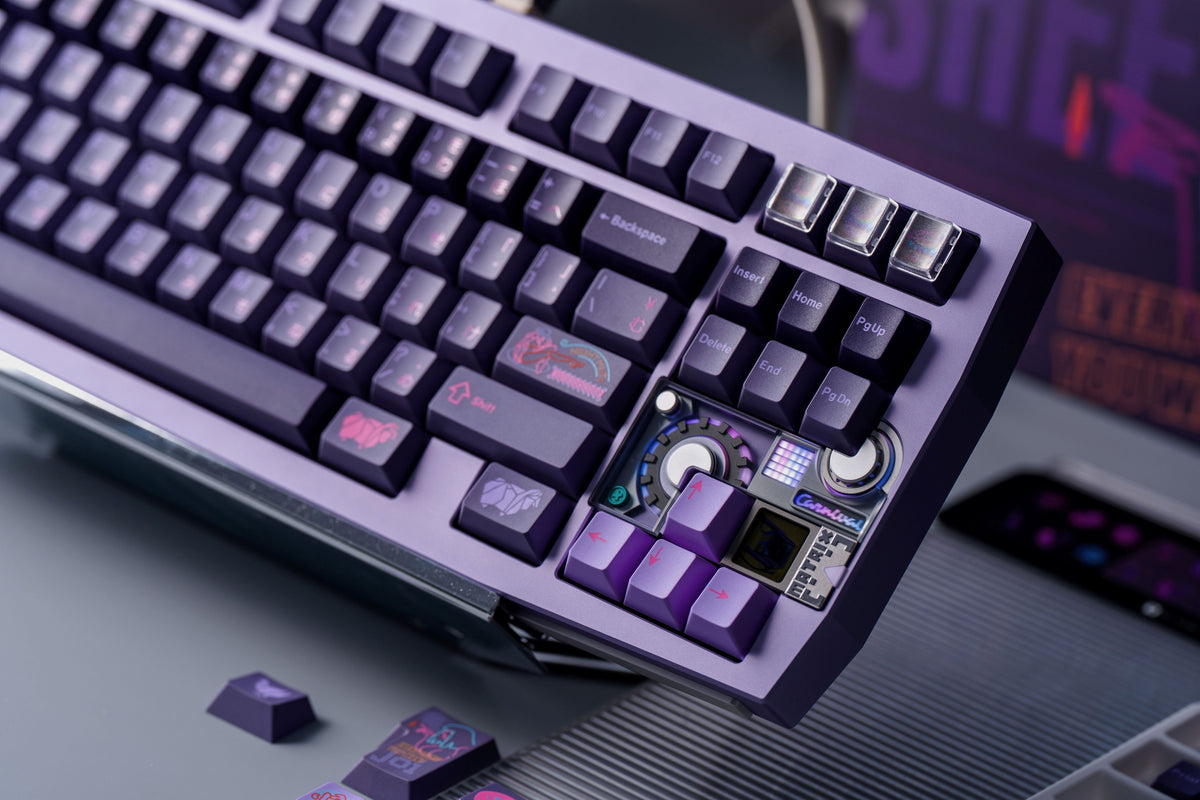
How to Change Keyboard Keycaps: Step-by-Step Guide for Beginners
DashanYuan
If you’ve ever looked at your keyboard and thought it felt boring, worn out, or uncomfortable, changing the keycaps might be the easiest upgrade you can make. Learning how to change keyboard keycaps doesn’t require advanced technical skills, and for many users, it’s their first step into keyboard customization.
Whether you’re a remote worker typing all day, a gamer chasing better control, or simply someone who wants a cleaner-looking desk setup, replacing keycaps can noticeably improve both appearance and typing experience. Industry observations from keyboard brands and enthusiast retailers show that keycap upgrades are one of the most common beginner modifications.
What Are Keyboard Keycaps and How Do They Work?
Keyboard keycaps are the removable covers that sit on top of each key switch. When you press a key, the keycap transfers force to the switch beneath it, which then registers the input.
Most modern mechanical keyboards use standardized switch stems, most commonly Cherry MX–style stems. This standardization is what allows users to change keycaps without modifying the keyboard itself. In contrast, many membrane keyboards use integrated key designs that limit or prevent keycap replacement.
Keycaps are usually made from ABS or PBT plastic. ABS keycaps are smooth and affordable but may develop shine over time, while PBT keycaps are more durable and resist wear. Keycap shape and height (often called the keycap profile) can influence typing comfort, but they do not affect how the keyboard electronics function.
If you’re exploring compatible options, browsing dedicated collections like Keyboard Keycaps can help ensure you select keycaps designed for mechanical keyboards.
Why Should You Change Your Keyboard Keycaps?
There are several practical reasons people choose to replace their keycaps, beyond simple aesthetics. One common motivation is improving typing comfort. Different keycap textures and profiles can reduce finger fatigue during long typing sessions, especially for remote workers and students.
Durability is another factor. Over time, frequently used keys may fade or become glossy from finger oils. Replacing worn keycaps can refresh a keyboard’s feel without the cost of buying a new one. Many users report that PBT keycaps maintain their texture longer under daily use.
Customization is also a key reason. Changing keycaps allows users to personalize layouts, improve key legend visibility, or match a specific workspace style. Gamers sometimes replace frequently used keys to improve grip or visual recognition during gameplay.
While changing keycaps won’t fundamentally alter switch mechanics, manufacturers such as Keychron often note that keycaps play a meaningful role in perceived typing feel and sound, though results vary depending on user preference and keyboard design.
What Tools Do You Need to Change Keyboard Keycaps?
Before learning how to change keyboard keycaps, it’s important to gather the right tools. Fortunately, most of them are simple and affordable.
|
Tool |
Purpose |
|
Keycap puller |
Safely removes keycaps without damaging switches |
|
Compressed air or soft brush |
Removes dust and debris under keycaps |
|
Microfiber cloth |
Cleans keyboard surface and keycaps |
|
Replacement keycaps |
New keycaps compatible with your keyboard layout |
Wire-style keycap pullers are generally recommended because they apply even pressure and reduce the risk of scratching keycaps. Before purchasing replacements, it’s also important to confirm keyboard layout size and stabilizer compatibility, as these can vary.
How to Change Keyboard Keycaps Step by Step
Changing keycaps is straightforward if you follow a careful process.
- Unplug your keyboard to avoid accidental inputs.
- Place the keycap puller over the keycap and pull straight up.
- Remove larger stabilized keys gently and evenly.
- Clean the keyboard surface before installing new keycaps.
- Align the new keycap with the switch stem and press down firmly.
- Reconnect the keyboard and test all keys.
Many first-time users complete the process within 30 minutes. Taking your time helps avoid damage and ensures proper fit.
What Common Mistakes Should You Avoid When Changing Keycaps?
One common mistake is pulling keycaps at an angle, which can stress switch stems. Another is forcing incompatible keycaps onto switches, which may cause permanent damage.
Users also frequently overlook layout differences, especially on compact keyboards, leading to mismatched key sizes. Improper installation of stabilized keys may result in rattling or uneven key feel.
Keyboard community feedback consistently suggests that slowing down and checking compatibility details in advance prevents most issues when learning how to change keyboard keycaps.
Conclusion
Changing keycaps is one of the easiest and most cost-effective ways to refresh and personalize your keyboard. By understanding keycap types, using the right tools, and following proper steps, most users can confidently upgrade their keyboard without professional help.
FAQs
Can I change keycaps on any keyboard?
Not all keyboards support keycap replacement. Mechanical keyboards with MX-style stems are the most compatible, while many membrane keyboards are not designed for individual keycap removal.
Do mechanical and membrane keyboards use the same keycaps?
Generally no. Mechanical keyboards use removable keycaps designed for specific switch stems, whereas membrane keyboards often use integrated designs.
How often should you replace keyboard keycaps?
There is no fixed replacement schedule. Some users replace keycaps due to wear after several years, while others change them for customization or comfort reasons.